> For the complete documentation index, see [llms.txt](https://wiki.delos.financial/llms.txt). Markdown versions of documentation pages are available by appending `.md` to page URLs; this page is available as [Markdown](https://wiki.delos.financial/applications-accounts-and-counterparties/quickstart-1.md).
# Password reset, 2fa, data change
**Multilogin**
Several users can have access to one customer account, upon registration and onboarding, you can make a corresponding request to our support.
#### Change password
If you forgot your password, please use the Forgot your password feature on the Sign-in page
You will be transferred to [DELOS | Forgot Password](https://stage.tst-delsmaindomn.com/auth/restore-password) and have to fill in your email, then click Submit
The only possible error is wrong email. In this case, please contact our customer success team for further checking. If all good, you will be transferred to [DELOS | Forgot Password](https://app.delos.financial/auth/new-password) and the email for password recovery with the recovery code will be sent to the specified email.
Note that we can’t change your password from within our system due to security reasons.
#### Two-factor authentication
We highly recommend you setting up the 2-factor authentication.
You still can use the account without it, but it's important for security purpose. The notification cannot be removed until you set the 2fa.
It can be done from the Settings section, along with the password change.
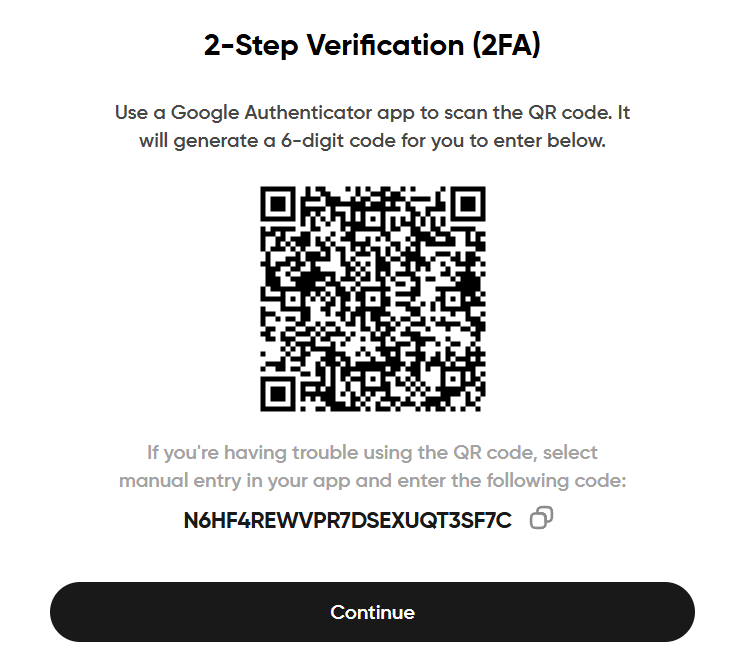
To set and use 2fa, you need to download Google Authenticator app on your phone (available in any application store, for all OS). In that app, you have to add new account and either scan QR code or input the text code. Once account added, you’ll see the 6-digit code that should be input to the Enter Authentication code field. After that, click Submit. To avoid losing the code, better set 2fa within google account, even if the device is lost, by accessing the google account you can access the code as well.
Time of codes expiry can be set individually as well. Record name can be edited also.
Once 2fa added successfully, you will see the confirmation message.
After that, every time you login, you will be asked to input the code from the Google Authenticator.
If you experience any issues with the 2fa, please contact our customer success team.
#### Data change
To change any data in your account after it has already been approved, please contact our customer success team.
---
# Agent Instructions
This documentation is published with GitBook. GitBook is the documentation platform designed so that both humans and AI agents can read, navigate, and reason over technical content effectively. Learn more at gitbook.com.
## Querying This Documentation
If you need additional information that is not directly available in this page, you can query the documentation dynamically by asking a question.
Perform an HTTP GET request on the current page URL with the `ask` query parameter, and the optional `goal` query parameter:
```
GET https://wiki.delos.financial/applications-accounts-and-counterparties/quickstart-1.md?ask=&goal=
```
`ask` is the immediate question: it should be specific, self-contained, and written in natural language.
`goal` is optional and describes the broader end goal you are ultimately trying to accomplish on behalf of the user. GitBook uses it to tailor the answer towards what is most useful for that goal.
The response will contain a direct answer to the question and relevant excerpts and sources from the documentation.
Use this mechanism when the answer is not explicitly present in the current page, you need clarification or additional context, or you want to retrieve related documentation sections.