> For the complete documentation index, see [llms.txt](https://wiki.delos.financial/llms.txt). Markdown versions of documentation pages are available by appending `.md` to page URLs; this page is available as [Markdown](https://wiki.delos.financial/applications-accounts-and-counterparties/quickstart-3.md).
# Counterparties
Counterparty is a person or business that you can send funds to. You can create a counterparty in the corresponding section of your Delos profile.
You see a 3-step form. All the mandatory fields should be filled in.
**Counterparty details:**
**Profile type** - Individual (physical person) or Corporation (business)
**Full name/Business name** - a person’s full name or business' legal name
**Line of business** - choose from the dropdown
**Relationship to customer** - choose from the dropdown
**Country** - choose from the dropdown
**Street** - no longer than 35 symbols
**State** - data should be in format as in this document: [Data Models](https://docs.layer2financial.com/guides/data_models/) (Enum), for the US codes like in this article: [ISO 3166-1 alpha-2](https://en.wikipedia.org/wiki/ISO_3166-1_alpha-2)
**Postcode** - fill in only digits, without spaces or any additional symbols. If you are not sure where to find your Zip/Postal code, you can use this (or similar) service: [What is my Zip Code - Zip Code Finder | Map Developers](https://www.mapdevelopers.com/what-is-my-zip-code.php)
**Account details** - click “One more account” to add payment details to which the funds will be sent.
Note that if you create yourself as counterparty, data should not be the same as you used in the application
Note that location, currency and sending method are connected. So depending on what you selected on previous step, your dropdown options and even fields for next steps will be different.
**Currency** - select from the dropdown
Note that the list of available currencies for the main account and the counterparty account is different. E.g., at the moment EUR is available for counterparties and not available for the user’s account.
**Wallet** - input your crypto wallet address
**Wallet type** - Institution, Other, Unknown
If you choose Institution, additional fields with information about this institution will appear.
**Counterparty bank location** - select fiat country or DLT assets option
**Currency** - select from dropdown
**Sending method** - select from dropdown
**IBAN/Account number** - International Bank Account Number
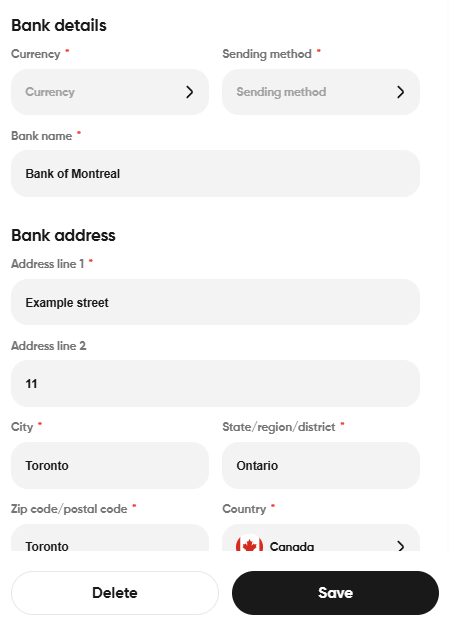
**Bank name** - fill in the counterparty’s bank name
**SWIFT** - also known as BIC, Bank Identifier Code
**Routing number** - In the United States, an ABA routing transit number is a nine-digit code printed on the bottom of checks to identify the financial institution on which it was drawn.
For **Bank Address**, rules are the same as specified above for counterparty address.
We have an autosave feature, so your progress won’t be lost, you can complete first stem and return to the second one later.
Once counterparty added, we’ll need some time to verify it. Usually it takes no longer than 15 minutes. Until it’s verified, in the Send money menu it’ll be grey and unclickable. If after 15 minutes it’s still not approved, please contact customer success.
You can’t edit counterparty after it’s accepted. If you need to edit some information, please contact customer success team.
---
# Agent Instructions
This documentation is published with GitBook. GitBook is the documentation platform designed so that both humans and AI agents can read, navigate, and reason over technical content effectively. Learn more at gitbook.com.
## Querying This Documentation
If you need additional information that is not directly available in this page, you can query the documentation dynamically by asking a question.
Perform an HTTP GET request on the current page URL with the `ask` query parameter, and the optional `goal` query parameter:
```
GET https://wiki.delos.financial/applications-accounts-and-counterparties/quickstart-3.md?ask=&goal=
```
`ask` is the immediate question: it should be specific, self-contained, and written in natural language.
`goal` is optional and describes the broader end goal you are ultimately trying to accomplish on behalf of the user. GitBook uses it to tailor the answer towards what is most useful for that goal.
The response will contain a direct answer to the question and relevant excerpts and sources from the documentation.
Use this mechanism when the answer is not explicitly present in the current page, you need clarification or additional context, or you want to retrieve related documentation sections.